OS X Railsinstaller
Step 1: Run RailsInstaller
Step 2: Open Terminal
Step 3: Install Sublime Text 2
Step 3.1: Download Sublime Text 2
Step 3.2: Select "Open with DiskImageMounter" in the file save dialog
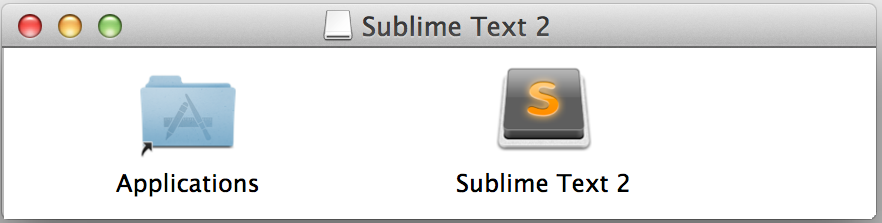
Step 3.3: Drag Sublime Text 2 into your Applications folder.
Step 3.4: Unmount the installer disk image
Step 4: Update Rails
Type this in the terminal:gem install rails
Step 5: Update Rails
Type this in the terminal:gem install rails
Verify successful installation
Type this in the terminal:which gitExpected result:/usr/bin/gitType this in the terminal:which rubyApproximate expected result:/usr/local/rvm/rubies/ruby-1.9.3-p194/bin/rubyThe greyed-out text may differ and is not important.Type this in the terminal:which railsApproximate expected result:/usr/local/rvm/gems/ruby-1.9.3-p194/bin/railsThe greyed-out text may differ and is not important.Type this in the terminal:ruby -vApproximate expected result:ruby 1.9.3p194The greyed-out text may differ and is not important.Type this in the terminal:rails -vApproximate expected result:Rails 4.0.xThe greyed-out text may differ and is not important.
Next Step:
Go on to Configure Git